Home / Product
From handshake to CRM. In one tap.
Pop It Teams has three parts: the employee's card, the moment someone leaves their details and the management for the organisation. You can see all three below.
Share your info back with Sheraz Ilahi
Smart networking starts with Pop ItBy Clicking "Connect", you share your information with Pop It. See our Privacy Policy
Sheraz Ilahi
No leads left behind
 Email
 Call
 Website
 LinkedIn
 WhatsApp
Organize Your New Contacts
A card that suits who you are and who you represent.
Photo, name, job title, the Save Contact button and your most important links. You share it via a physical NFC card, a QR code, a link, Apple or Google Wallet or your virtual background in a video call.
Tap
Hold the card against the phone and the profile opens. Works on almost every modern phone.
Scan or send
For when someone doesn't have NFC, or when you share the card online.
Always with you
In Apple and Google Wallet, next to your boarding pass and bank card.
More than links
Sixteen blocks to build a card: buttons, text, video, gallery, documents, a calendar link for appointments, a map with directions, client quotes and the contact form itself.
Font, buttons, light or dark
Eight font pairings and five button styles. Or, as an organisation, lock everything so that everyone keeps the same style.
Eleven styles. One house style.
From a crisp Executive card for a ministry to a dark Noir for a creative agency. An Admin decides which styles the team may choose and can lock the colour and font.
Lisa Jansen
Website Book an appointmentLinkedIn
 Brochure
Lisa Jansen
WebsiteBook an appointmentLinkedInBrochureLisa Jansen
Lisa Jansen
Account manager at Pop It
Lisa Jansen
Lisa Jansen
Lisa Jansen
WebsiteBook an appointmentLinkedInBrochureLisa Jansen
The other person leaves their details. Your email goes out straight away.
After a tap, the other person first sees a short form. Once it is filled in, a follow-up email goes out from you straight away, with the links that suit the conversation. The other person can then save your contact.
Your fields
By default: name, email, phone, company, job title and a note. Name and email are required; you choose the rest. You can add your own fields too, as well as a checkbox for marketing consent.
Sent now or later
With fields such as the lead's name, CC or BCC to a colleague and your signature underneath. Straight after the conversation or at a later moment.
Paper works too
Still handed a paper card? Scan it and the contact is captured just as well.
Everything in one place
New contacts per employee and team, ready to export or pass on to the CRM.
From conversation to CRM. Without the hassle.
Four moments when Pop It does the work for you, from the first conversation to the next video call.
From noise to a contact
Half-remembered names, loose cards and forgotten numbers become one complete contact. Spelled correctly, in the right place.
Change it once. Up to date everywhere.
A new role, a new number or a new link? Change it once. Every card follows immediately, including the physical NFC card.
One tap. No app needed.
Hold the card against the phone and your profile opens in the browser. The other person saves you with one button.
In every video call, too
A background in your house style, with your name and job title. For Teams, Zoom and Google Meet.
No duplicate contacts. No hassle.
You connect a webhook yourself. We switch on the integrations with HubSpot, Salesforce and the other CRM systems for you on request. Pop It searches by email address first. If the contact already exists, you choose whether it is updated, skipped or created as new anyway. If a sync fails, Pop It automatically tries again later.
| System | What happens |
|---|---|
| HubSpot | Create or update a contact |
| Salesforce | Lead or contact, with your own field mapping |
| Microsoft Dynamics 365 | Lead or contact |
| Zoho CRM | Lead or contact, including in European data centres |
| Pipedrive | Person and lead |
| monday | Item on the board; columns are recognised or created |
| Webhook | Signed message to your own system, Zapier, Make or n8n |
A contact's tags can determine what goes to the CRM. For example, you only pass on contacts tagged Customer.
See what every conversation delivers.
Every tap, every view and every new contact comes together in one dashboard. Per team, per employee and per period. Click through the real screens. Names and contact details have been replaced with examples.
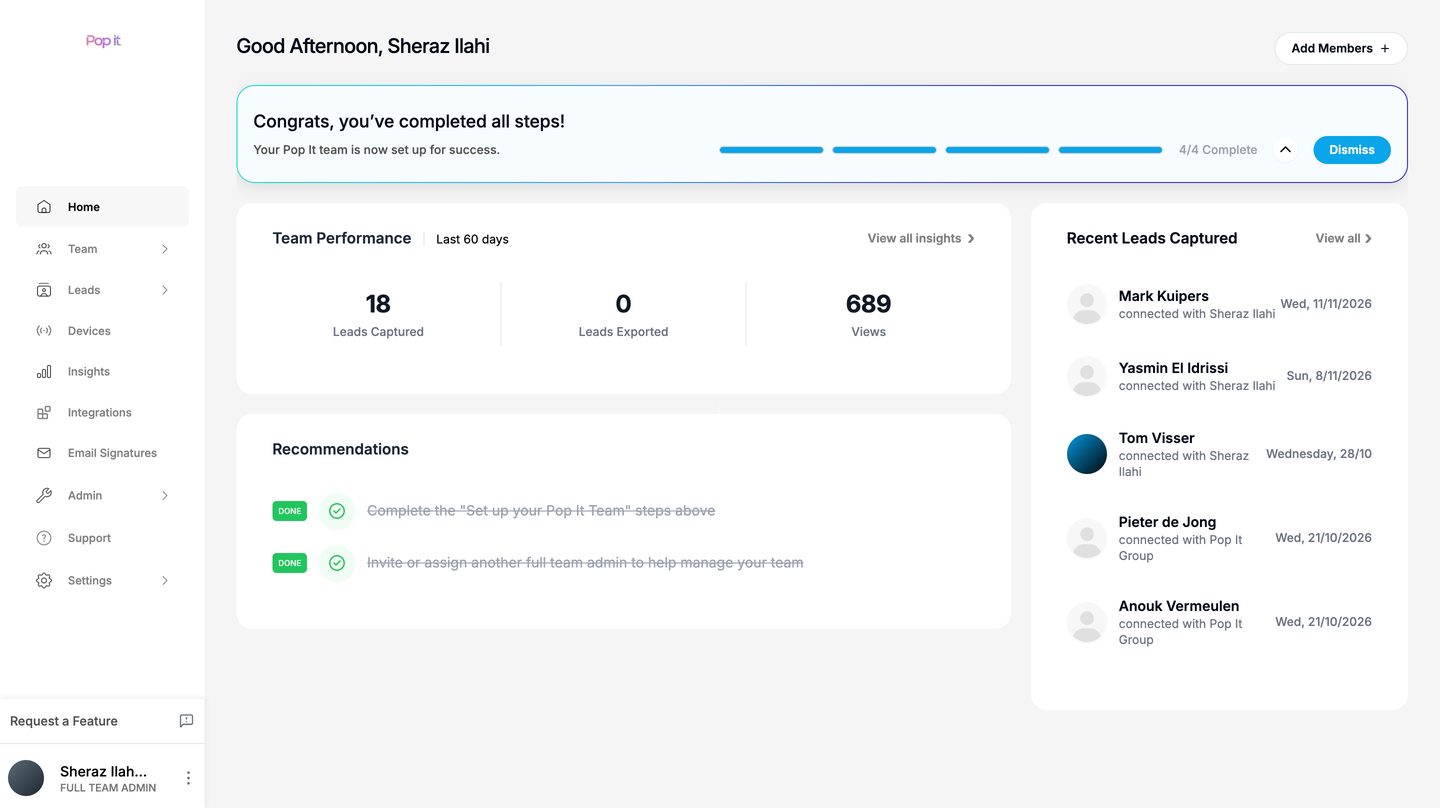
Team performance over the last 60 days, recommendations and the latest leads, with who made each contact.
Personal for the employee. Manageable for the organisation.
Questions about smart business cards
What is the difference between a digital and a smart business card?
There is no real difference. Both names are used for a business card you share digitally. With Pop It, you share it via an NFC card, a QR code, a link, Apple or Google Wallet or your virtual background.
Does an NFC business card work on every phone?
Modern iPhones and Android phones read NFC without an app. If NFC doesn't work, the other person scans the QR code or you open the profile via a link.
Can we still use physical business cards?
Yes. Pop It supplies NFC cards in your house style. They work like a paper business card, but point to the digital profile, so they are always up to date.
Seeing beats reading.
We'll show you in twenty minutes, with a card in your own house style.